11. Counting Idling Resource
L5 P4 A09 CountingIdlingResource V3
In this step, you'll create an Espresso idling resources to act as a synchronization mechanism for Espresso and your long running operations.
Step 1: Turn off animations
If you haven't already, turn off animations.
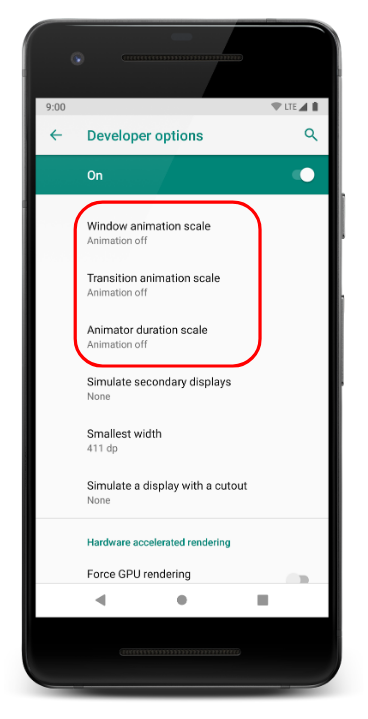
- On your testing device (physical or emulated), go to Settings > Developer options.
- Disable these three settings:
- Window animation scale
- Transition animation scale
- Animator duration scale
Step 2: Create TasksActivityTest
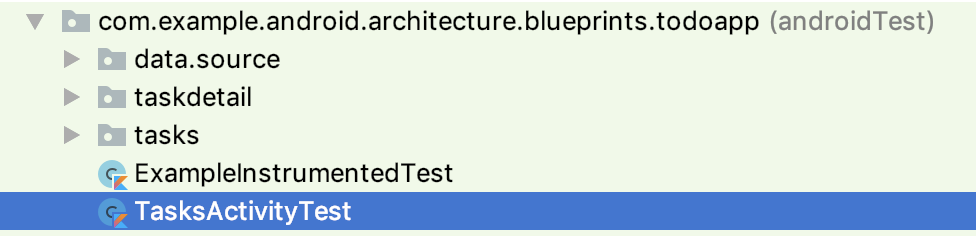
- Create a file and class called TasksActivityTest.kt in
androidTest:
- Annotate the class with
@RunWith(AndroidJUnit4::class)because you're using AndroidX test code. - Annotate the class with
@LargeTest, which signifies these are end-to-end tests, testing a large portion of the code. - Create a property called repository which is a
TasksRepository. - Create a
@Beforemethod and initialize the repository using theServiceLocator'sprovideTasksRepositorymethod; usegetApplicationContextto get the application context. - In the
@Beforemethod, delete all the tasks in the repository, to ensure it's completely cleared out before each and every test run. - Create an
@Aftermethod that calls theServiceLocator'sresetRepository()method.
When you're done, your code should look like:
TasksActivityTest.kt
@RunWith(AndroidJUnit4::class)
@LargeTest
class TasksActivityTest {

    private lateinit var repository: TasksRepository

    @Before
    fun init() {
        repository = ServiceLocator.provideTasksRepository(getApplicationContext())
        runBlocking {
            repository.deleteAllTasks()
        }
    }

    @After
    fun reset() {
        ServiceLocator.resetRepository()
    }
}
What about ActiivtySenarioRule?
Note that there is an ActivityScenarioRule which calls launch and close for you.
As mentioned, any setup of the data state, such as adding tasks to the repository, must happen before ActivityScenario.launch() is called. Calling such additional setup code, such as saving tasks to the repository, is not currently supported by ActivityScenarioRule. Therefore, we choose not to use ActivityScenarioRule and instead manually call launch and close.
Step 3: Write an End-to-End Espresso Test
- Open
TasksActivityTest. - Inside the class, add the following skeleton code:
TasksActivityTest.kt
@Test
fun editTask() = runBlocking {
    // Set initial state.
    repository.saveTask(Task("TITLE1", "DESCRIPTION"))

    // Start up Tasks screen.
    val activityScenario = ActivityScenario.launch(TasksActivity::class.java)


    // Espresso code will go here.


    // Make sure the activity is closed before resetting the db:
    activityScenario.close().
}
This is the basic setup for any test involving an Activity. Between when you launch the ActivityScenario and close the ActivityScenario you can now write your Espresso code.
- Add the Espresso code as seen below:
TasksActivityTest.kt
@Test
fun editTask() = runBlocking {

    // Set initial state.
    repository.saveTask(Task("TITLE1", "DESCRIPTION"))

    // Start up Tasks screen.
    val activityScenario = ActivityScenario.launch(TasksActivity::class.java)

    // Click on the task on the list and verify that all the data is correct.
    onView(withText("TITLE1")).perform(click())
    onView(withId(R.id.task_detail_title_text)).check(matches(withText("TITLE1")))
    onView(withId(R.id.task_detail_description_text)).check(matches(withText("DESCRIPTION")))
    onView(withId(R.id.task_detail_complete_checkbox)).check(matches(not(isChecked())))

    // Click on the edit button, edit, and save.
    onView(withId(R.id.edit_task_fab)).perform(click())
    onView(withId(R.id.add_task_title_edit_text)).perform(replaceText("NEW TITLE"))
    onView(withId(R.id.add_task_description_edit_text)).perform(replaceText("NEW DESCRIPTION"))
    onView(withId(R.id.save_task_fab)).perform(click())

    // Verify task is displayed on screen in the task list.
    onView(withText("NEW TITLE")).check(matches(isDisplayed()))
    // Verify previous task is not displayed.
    onView(withText("TITLE1")).check(doesNotExist())
    // Make sure the activity is closed before resetting the db.
    activityScenario.close()
}
Here are the imports if you need them:
TasksActivityTest.kt
import androidx.test.core.app.ActivityScenario
import androidx.test.core.app.ApplicationProvider.getApplicationContext
import androidx.test.espresso.Espresso.onView
import androidx.test.espresso.action.ViewActions.click
import androidx.test.espresso.action.ViewActions.replaceText
import androidx.test.espresso.assertion.ViewAssertions.doesNotExist
import androidx.test.espresso.assertion.ViewAssertions.matches
import androidx.test.espresso.matcher.ViewMatchers.*
import androidx.test.ext.junit.runners.AndroidJUnit4
import androidx.test.filters.LargeTest
import com.example.android.architecture.blueprints.todoapp.data.Task
import com.example.android.architecture.blueprints.todoapp.data.source.TasksRepository
import com.example.android.architecture.blueprints.todoapp.tasks.TasksActivity
import kotlinx.coroutines.runBlocking
import org.hamcrest.core.IsNot.not
import org.junit.After
import org.junit.Before
import org.junit.Test
import org.junit.runner.RunWith- Run this test five times. Notice that the test is flaky, meaning sometimes it will pass, and sometimes it will fail:


Step 4: Add Idling Resource to your Gradle file
- Open your app's build.gradle file and add the Espresso idling resource library:
app/build.gradle
implementation "androidx.test.espresso:espresso-idling-resource:$espressoVersion"- Also add the following option
returnDefaultValues = truetotestOptions.unitTests.
app/build.gradle
    testOptions.unitTests {
        includeAndroidResources = true
        returnDefaultValues = true
    }
Step 5: Create an Idling Resource Singleton
You will add two idling resources. One to deal with data binding synchronization for your views, and another to deal with the long running operation in your repository.
You'll start with the idling resource related to long running repository operations.
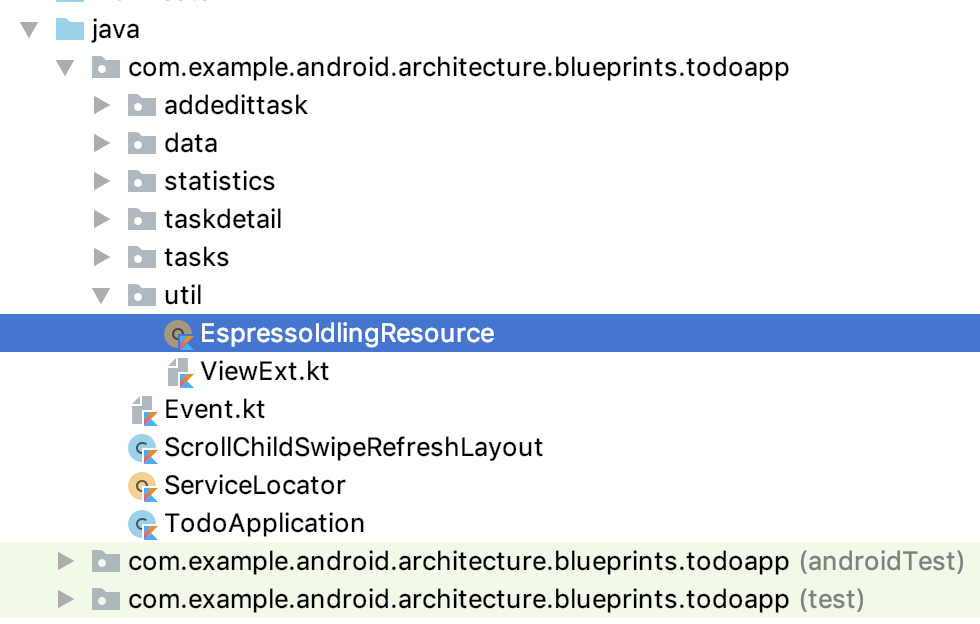
- Create a new file called EspressoIdlingResource in** app > java > main > util**:
- Copy the following code:
EspressoIdlingResource.kt
object EspressoIdlingResource {

    private const val RESOURCE = "GLOBAL"

    @JvmField
    val countingIdlingResource = CountingIdlingResource(RESOURCE)

    fun increment() {
        countingIdlingResource.increment()
    }

    fun decrement() {
        if (!countingIdlingResource.isIdleNow) {
            countingIdlingResource.decrement()
        }
    }
}
Step 6: Create wrapEspressoIdlingResource
- In the EspressoIdlingResource file, below the singleton you just created, add the following code for
wrapEspressoIdlingResource:
EspressoIdlingResource.kt
inline fun <T> wrapEspressoIdlingResource(function: () -> T): T {
    // Espresso does not work well with coroutines yet. See
    // https://github.com/Kotlin/kotlinx.coroutines/issues/982
    EspressoIdlingResource.increment() // Set app as busy.
    return try {
        function()
    } finally {
        EspressoIdlingResource.decrement() // Set app as idle.
    }
}
Step 7: Use wrapEspressoIdlingResource in DefaultTasksRepository
Now you should wrap long running operations with wrapEspressoIdlingResource. The majority of these are in your DefaultTasksRepository.
- In your application code, open data > source > DefaultTasksRepository.
- Wrap all methods in
DefaultTasksRepositorywithwrapEspressoIdlingResource
Here's an example of wrapping the getTasks method:
DefaultTasksRepository.kt
    override suspend fun getTasks(forceUpdate: Boolean): Result<List<Task>> {
        wrapEspressoIdlingResource {
            if (forceUpdate) {
                try {
                    updateTasksFromRemoteDataSource()
                } catch (ex: Exception) {
                    return Result.Error(ex)
                }
            }
            return tasksLocalDataSource.getTasks()
        }
    }
The full code for DefaultTasksRepository with all the methods wrapped can be found here.
It is unusual to have testing code in your application. To understand more about why and methods of removing idling resource code from your application production code, check out Android testing with Espresso’s Idling Resources and testing fidelity.